PANDACustomer system
Edits wait for your confirm
Panda holds the customer
from the first message to collection
Leads, quotes, invoices, and team tasks on one board. Panda reads the question, and any sensitive write shows on a card before it runs.
Register a new company. Log in to an existing account. Advanced operations live in the separate ERP.
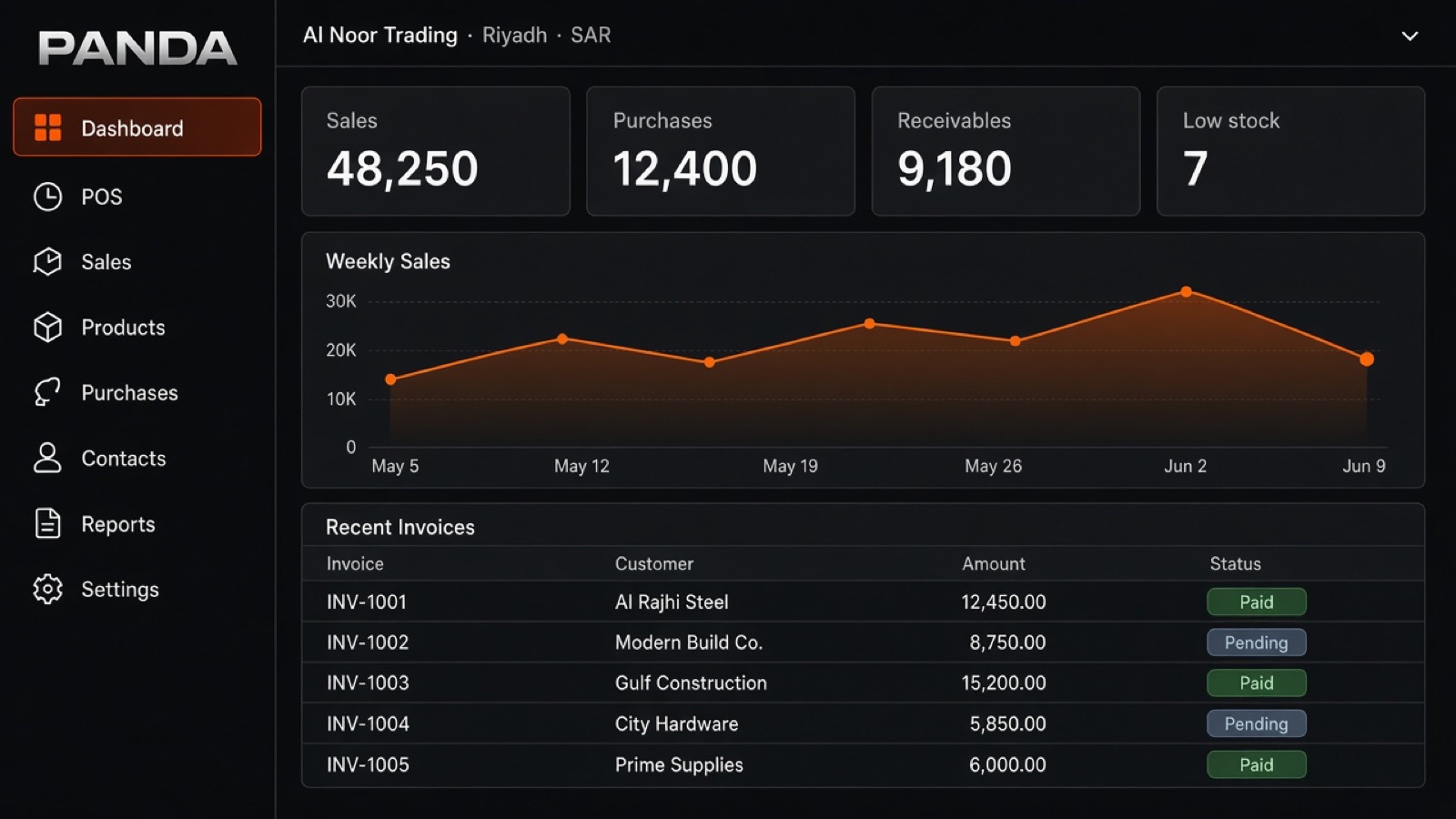

Each capability has a daily job
Not a generic feature list. Each card is what happens inside the account.
One path from lead to collection
Source, stage, and owner stay on one record, and the quote becomes an invoice with the same lines.
Today’s report from the same documents
Revenue, open, and overdue read the recorded invoices, without an outside file.
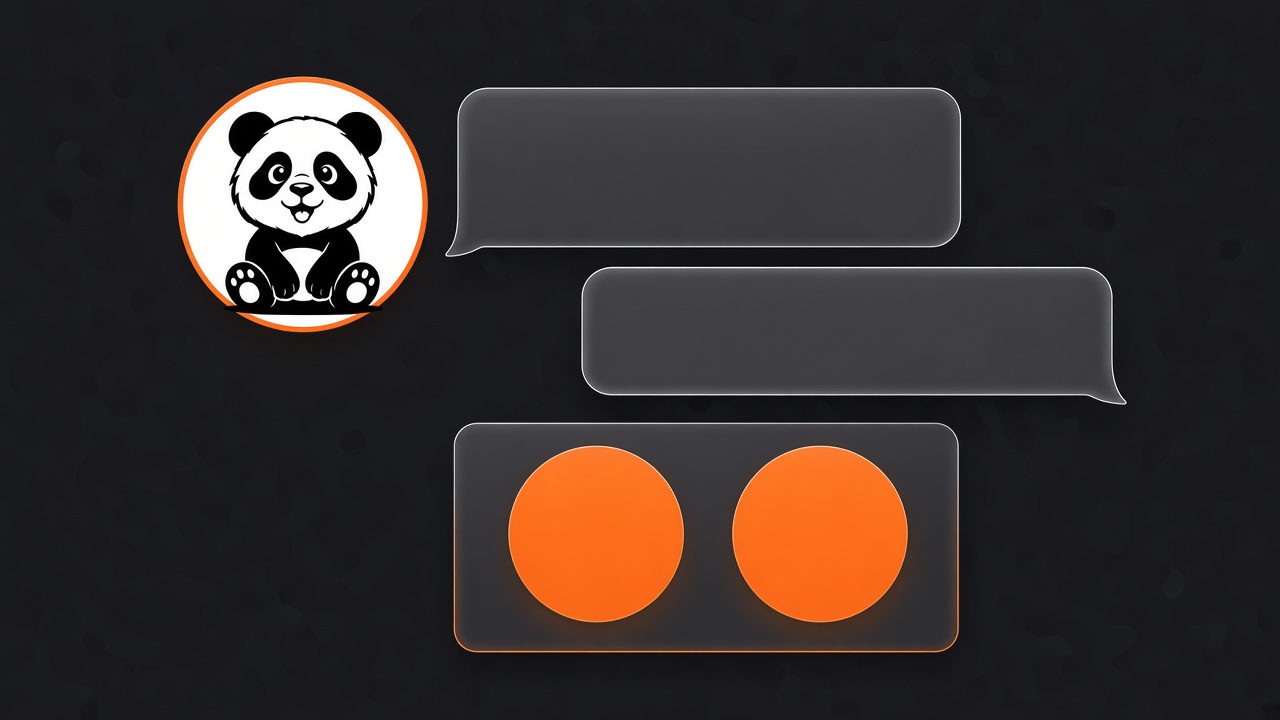
Panda waits for your confirm
The question is answered in chat. A write shows on a card with run or cancel.
Leads
Source, stage, and owner on every opportunity so a call is not lost.
Quotes
A quote from the customer and items, then an invoice with the same lines.
Invoices
Open, overdue, and paid amounts on the same customer record.
Team tasks
Assigned follow-up, and a view of who is late to reply.
Today
Revenue and open invoices without a manual export each morning.
Panda AI
Ask in Arabic or English. A confirm card before any data change.
02 — Workflows
What, why, and who
Four paths cover the sale, the collection, and the question to the assistant.
Lead to customer
- What
- Move the stage and convert the lead when you agree.
- Why
- The record stays one piece between sales and accounts.
- Who
- The salesperson and the team lead.
Quote to invoice
- What
- Approve the quote, then issue the invoice with the same lines.
- Why
- The price that was said matches the price collected.
- Who
- Sales and accounts.
Collect overdue
- What
- A list of late invoices and a follow-up action.
- Why
- Cash does not wait for the month-end report.
- Who
- Accounts and the company owner.
Ask the assistant
- What
- Ask for today's numbers or a reply draft.
- Why
- The action shows on a card and waits for run or cancel.
- Who
- Anyone inside the account.
Services
Every service, in detail
Each service has a screenshot, an explanation, an example, the steps, and the effect on the work.
01 — Customers and leads
Customers and leads
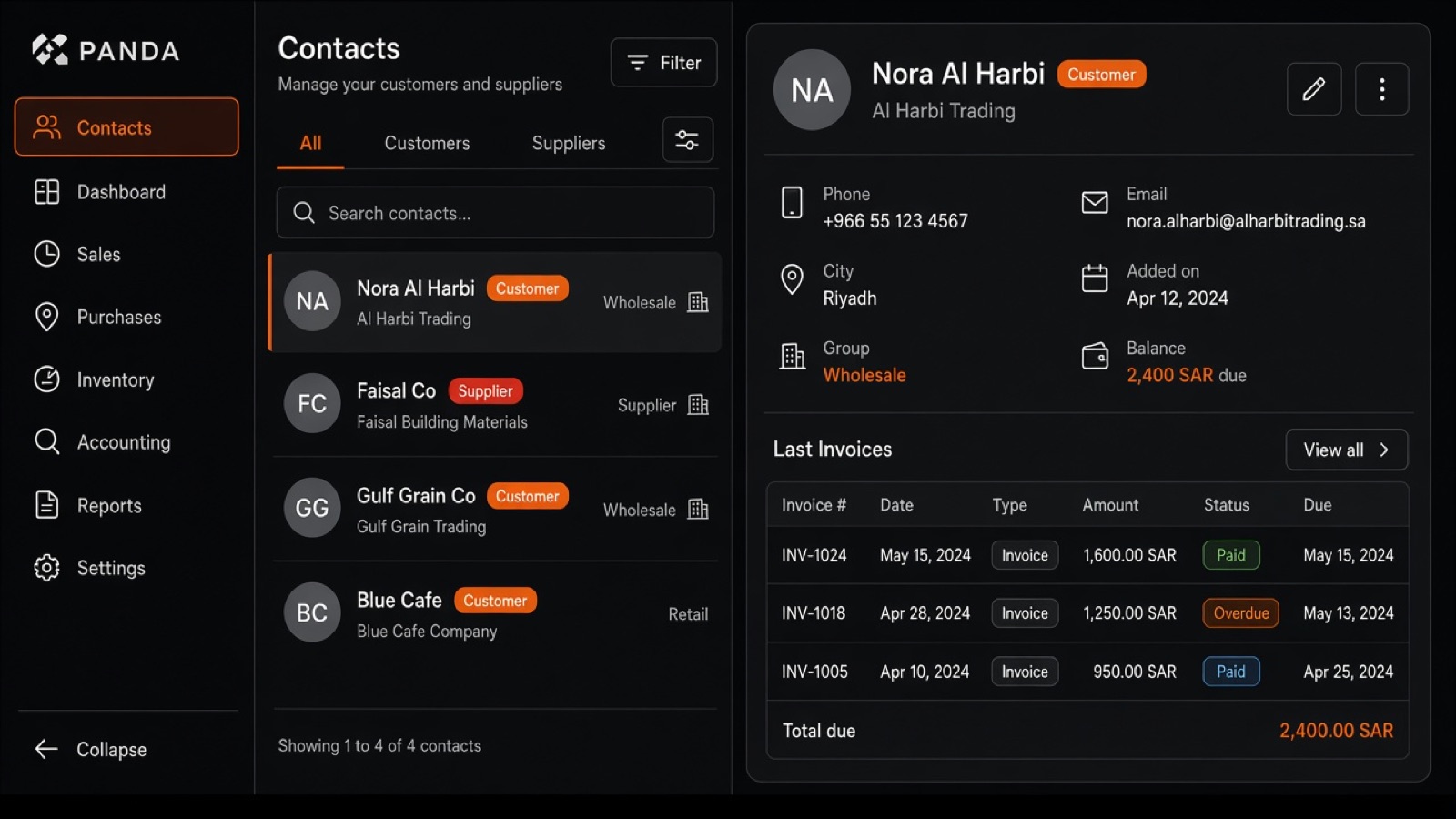
Every opportunity starts as a lead: where it came from, which stage it is in, and who owns it. The call, the note, and the quote stay on one card. When you agree, the lead becomes a customer without retyping the name or the phone, and sales and accounts keep the same history.
1Source, stage, and owner on the card
2A note and a call on the same record
3Convert without retyping
4A list of late replies
Example
Example: Ahmed came from an ad. You save a lead, source “ad”, stage “new”, owner Sara. After the call you note “wants a quote for 12 units”. On agreement you convert him, and the name is ready for the quote.
How to use it
- Open customers and add a lead.
- Enter name, phone, source, stage, owner, and the note.
- On agreement, convert him and continue the quote from the same record.
How it helps
The team sees who has not replied, the lead sees which sources close, and accounts receive a customer instead of a name on paper.
- What
- Holds the opportunity until it becomes a customer.
- Why
- A call is not lost between sales and accounts.
- Who
- The salesperson and the team lead.
02 — Quotes
Quotes
The quote is built from the customer and the items. Each line has quantity, price, and discount, and you review it before sending. After approval the same lines move to the invoice, so email and accounts are not two different copies.
1Lines from the customer and items
2Review price and discount before sending
3Approve, then convert
4One copy for sales and accounts
Example
Example: a showroom customer asks for 3 cars. The quote has three lines and a 2% discount. After approval it becomes an invoice. The total does not change because the lines are the same.
How to use it
- Pick the customer and add lines from items.
- Review discount and total, then save.
- After approval, convert to an invoice.
How it helps
Less argument between the call and the invoice, and finance does not retype the lines.
- What
- Issues a quote and converts it with the same lines.
- Why
- The spoken price is the collected price.
- Who
- Sales, before the invoice is closed.
03 — Invoices
Invoices
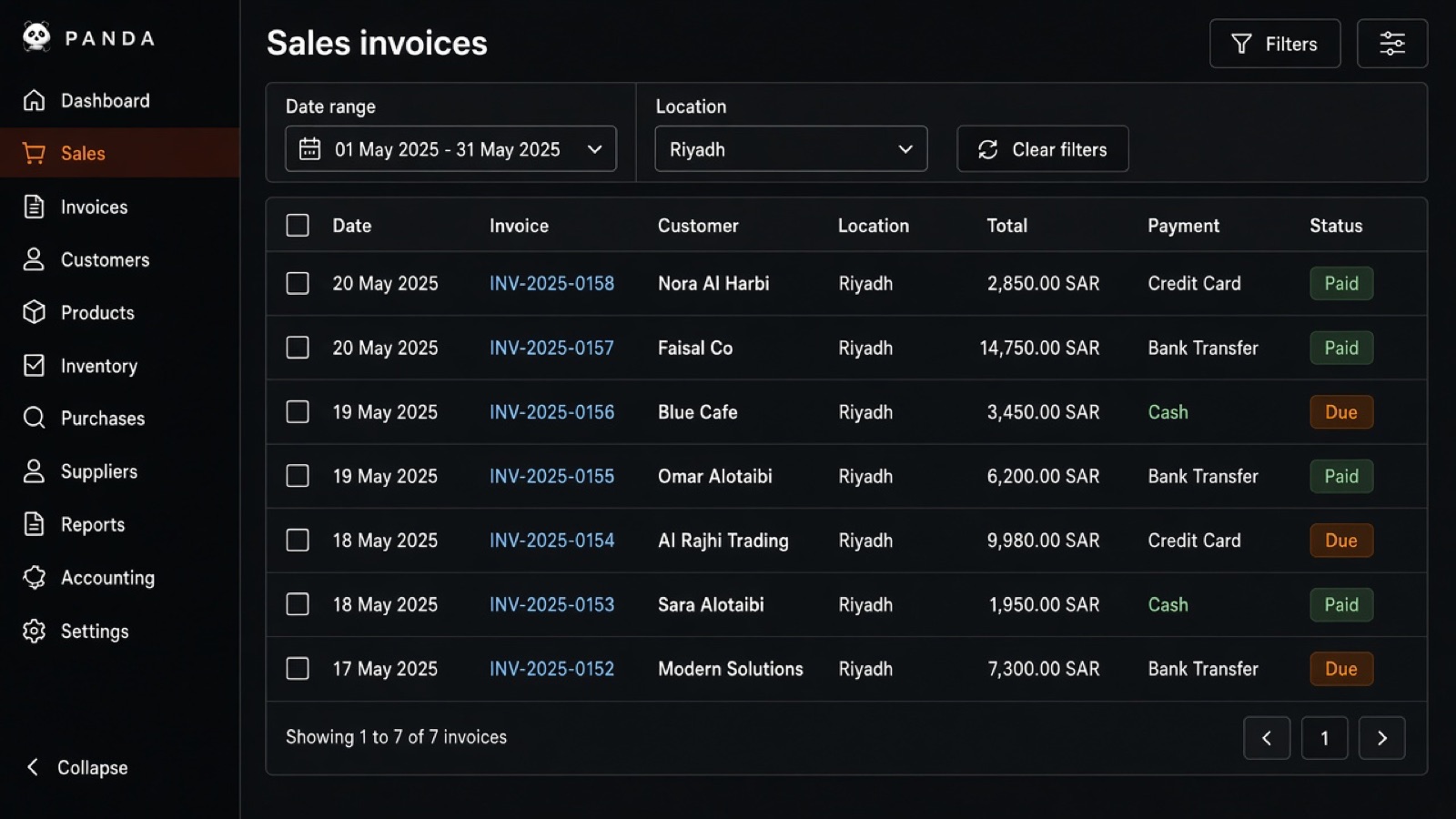
The invoice is the final document: customer, lines, tax when it applies, total, and payment status. The list filters by date and status. An open invoice stays visible until it is collected, and it is the base of the revenue report.
1Invoice tied to the customer
2Paid, open, or overdue
3Open it without retyping
4The base of the revenue report
Example
Example: a showroom invoice of 180,000 with 60,000 paid. The status stays open and the remaining 120,000 shows on the list, not in a side file.
How to use it
- Create the invoice from the quote or from the customer.
- Review lines and total, then save.
- Filter the list to open or overdue for follow-up.
How it helps
The owner sees recorded sales, and collection works from one agreed number.
- What
- Records the final sale and its payment state.
- Why
- Finance and sales read the same document.
- Who
- Accounts and collections.
04 — Collection
Collection
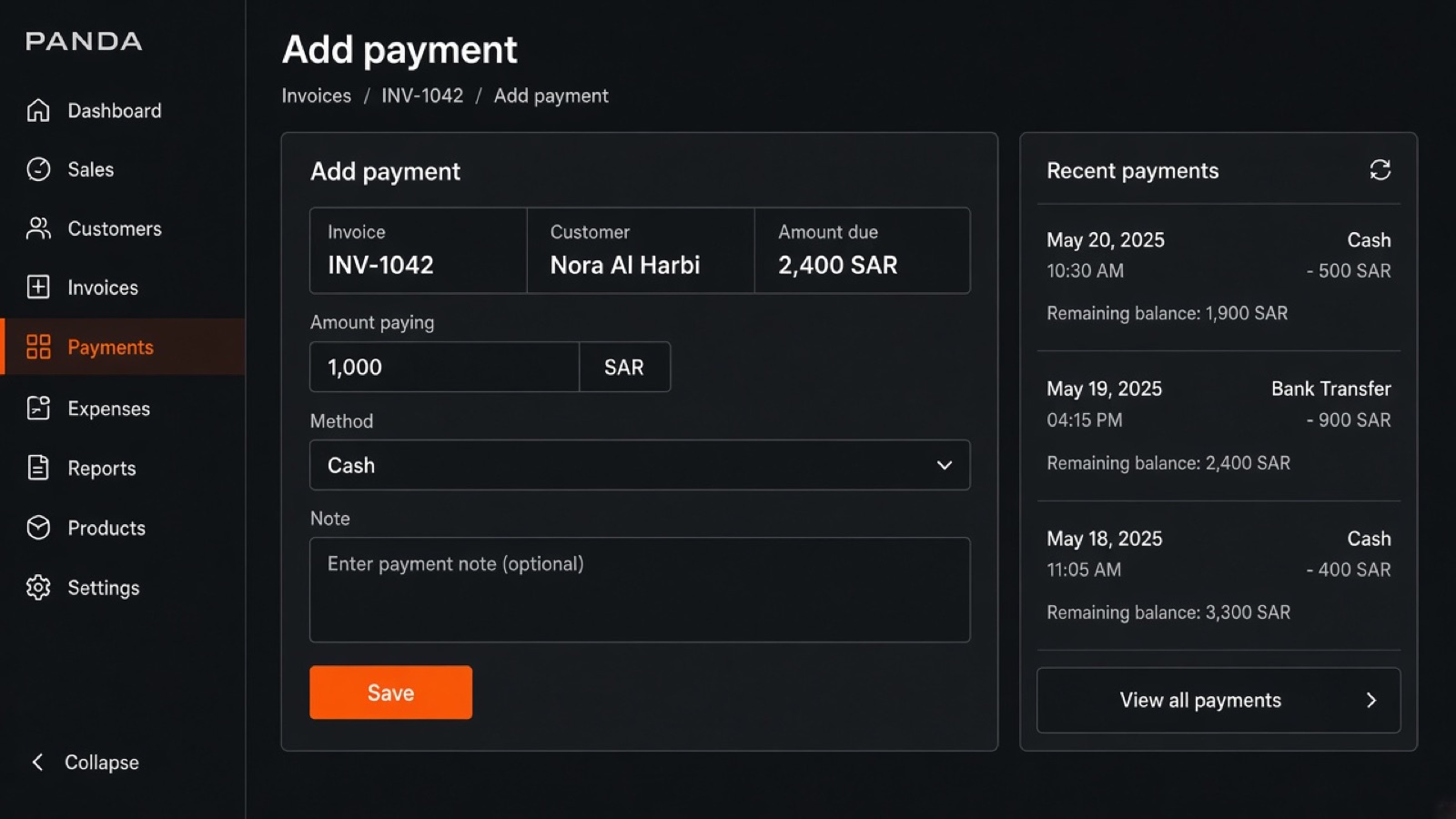
After the invoice, collection tracks the balance and the payment method. Overdue items sit on one list, so follow-up does not wait for the month-end report. Each payment reduces the balance on that invoice and shows in today’s report.
1Paid and remaining on one invoice
2Overdue on one list
3Follow-up from the customer record
4A direct effect on today’s report
Example
Example: a clinic installment is a week late. It shows on the overdue list, you record the payment, and the balance drops on the invoice immediately.
How to use it
- Open the open or overdue invoices.
- Record the payment, the amount, and the method.
- Confirm the balance changed before you leave the screen.
How it helps
You know the cash expected this week, and a “should have arrived” amount is not still hanging.
- What
- Tracks the amount still unpaid.
- Why
- Cash does not wait for month end.
- Who
- Accounts and the company owner.
05 — Team tasks
Team tasks
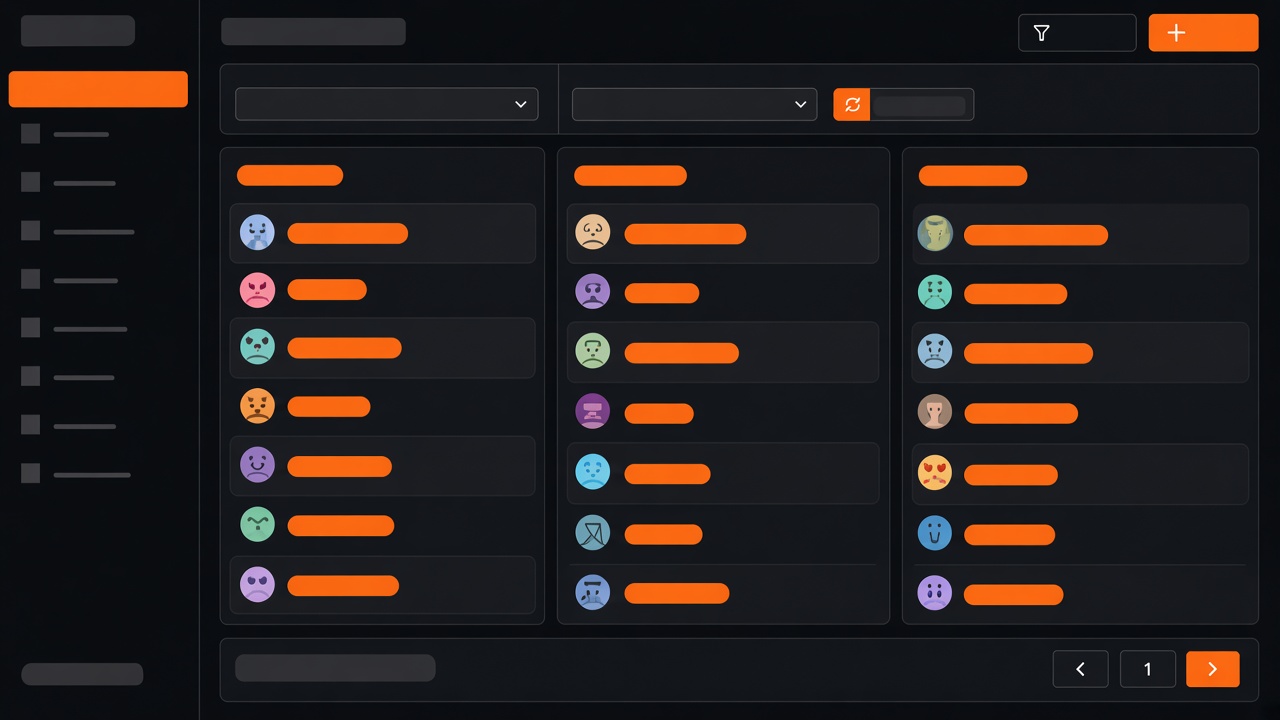
Every follow-up has an owner, a time, and a status. The board shows who finished and who is late, instead of leaving the message in a private chat the lead cannot see. The task is linked to the customer so the record shows the next action.
1Assign the task to a user
2Status from new to done
3Show what is past due
4Link the task to the customer
Example
Example: Sara has “call Ahmed tomorrow at 10”. If the task stays open, the lead sees it late without asking in the group chat.
How to use it
- From the customer record, add a task, an owner, and a time.
- Update the status when you call or send the quote.
- Review the late board each morning.
How it helps
A customer is not “nobody called” because the task shows an owner and a time.
- What
- Assigns follow-up and shows the late ones.
- Why
- The team works one list.
- Who
- The sales lead and the team.
06 — Today report
Today report
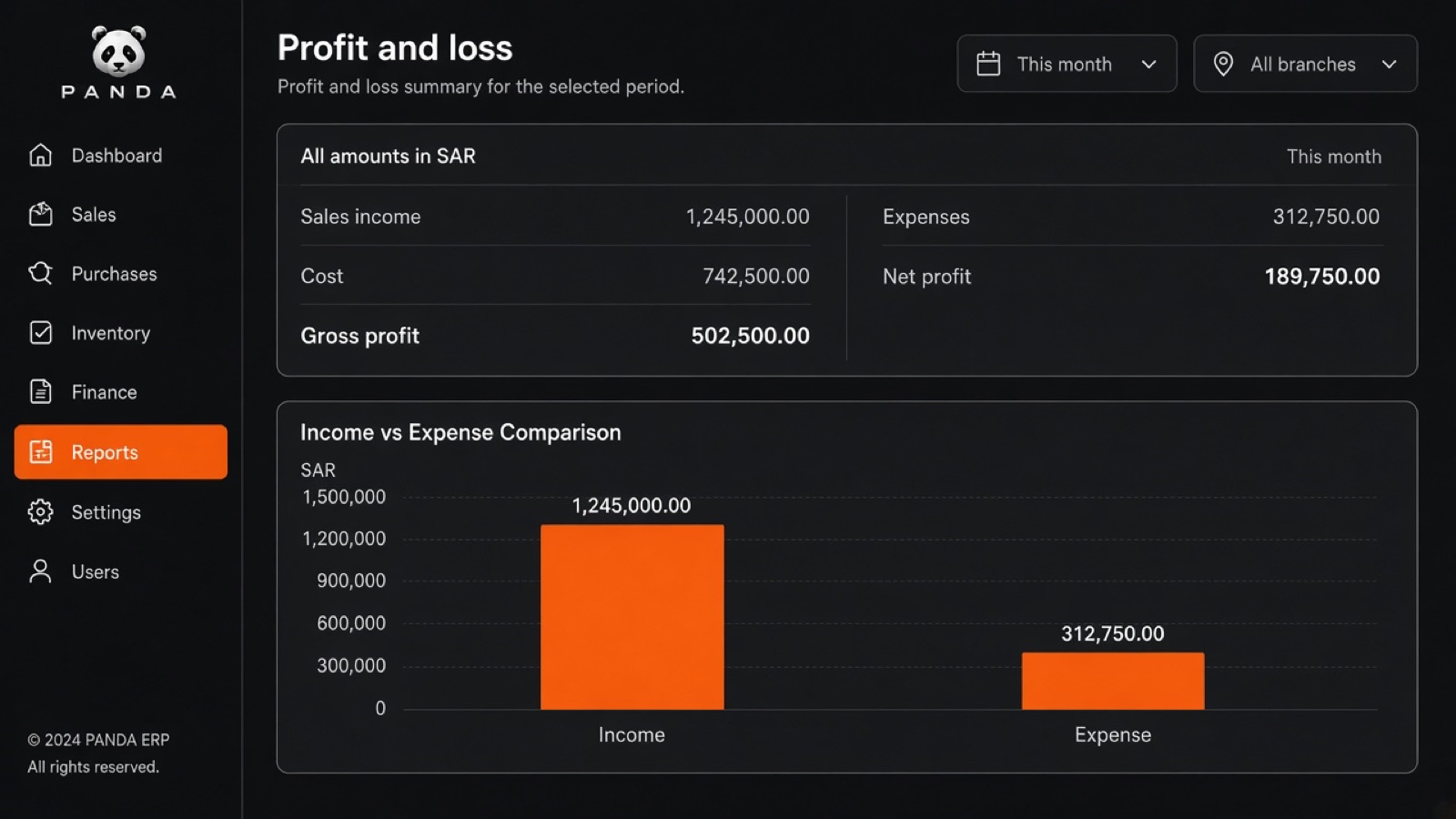
The report reads invoices and tasks stored in the same account. The morning starts with revenue, open items, and overdue items, without a manual export. The number points back at the document, not at a guess in a message.
1Period revenue
2Open invoices
3A simple movement view
4Numbers from the same operational record
Example
Example: before the meeting you open the report: week revenue, 14 open invoices, 6 overdue. You open any invoice from that same number.
How to use it
- Open today’s report and pick the period.
- Read revenue, open, and overdue.
- Open the invoice from the report when you need the detail.
How it helps
The meeting starts from a number in the system, not from a sheet updated by hand yesterday.
- What
- Summarizes today from the documents.
- Why
- The decision does not wait for a spreadsheet.
- Who
- The owner and the accounts lead.
07 — Panda AI
Panda AI
You write the question in Arabic or English. The answer shows in the chat, and any data change appears on a card with run or cancel. The assistant does not write the record alone. An attachment is context for the reply; the visible message stays your question.
1Ask for today’s numbers
2Draft a customer reply
3A confirm card before a write
4Cancel from the same card
Example
Example: you ask “what is overdue this week?”. It answers with the number. If you ask “log a follow-up for Ahmed”, a card appears and nothing is saved until you press run.
How to use it
- Open Panda from the floating button and type the question.
- Read the answer. If a card appears, read the text.
- Press run or cancel. Cancel does not change the record.
How it helps
You spend less time searching lists, and a write still needs you.
- What
- Answers, then shows the action before it runs.
- Why
- A sensitive edit is not applied by mistake.
- Who
- Anyone inside the account.
08 — Construction
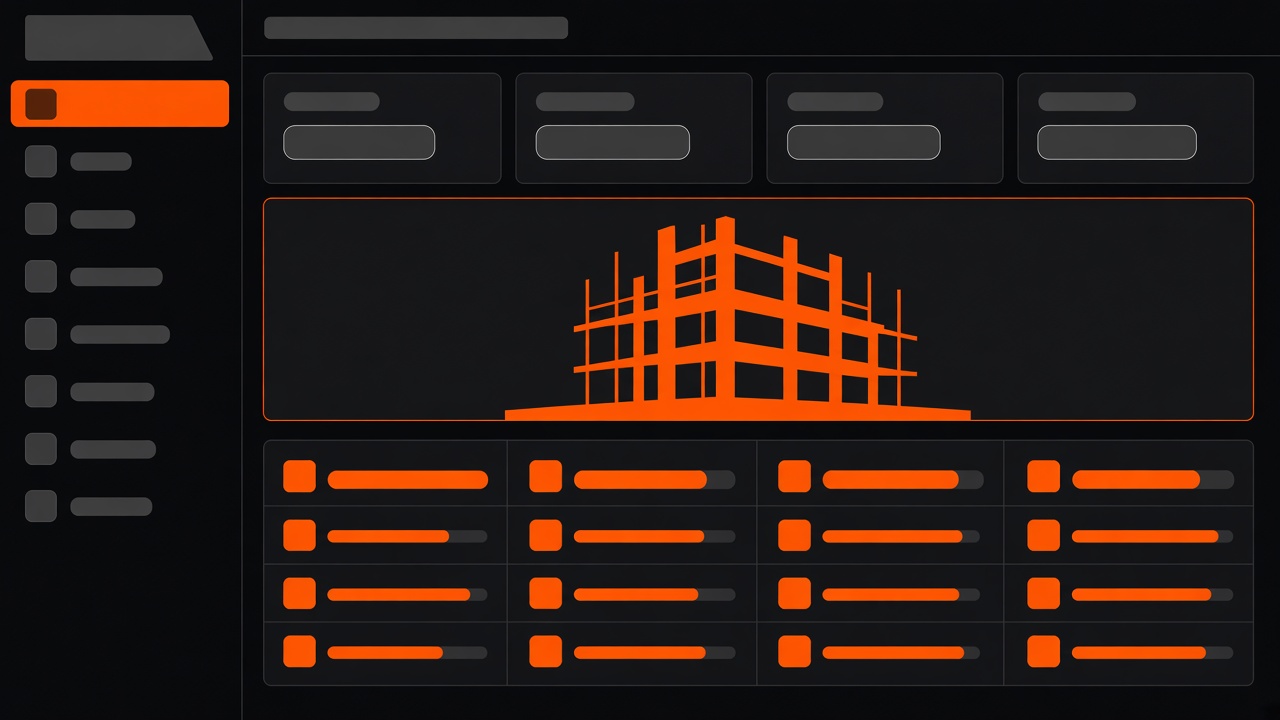
Construction
The construction module opens the project path: units, project expenses, and installments. The menu changes so contractor work is not mixed with a generic sale. A partner due and a unit stay on that project.
1Units and their state
2An expense tied to the project
3Installments and dues
4Customer follow-up on the same record
Example
Example: a 40-unit project. Unit 12 is reserved, the second installment is late, and the concrete cost is on the project, not on a general company expense.
How to use it
- After signup, pick construction.
- Create the project and units and link the customer.
- Record the installment or the expense on the project and follow what is late.
How it helps
You see which unit is free and which installment is unpaid, without a separate sheet per project.
- What
- Runs the unit, the installment, and the expense.
- Why
- A partner due does not live outside the project.
- Who
- The contractor and the project lead.
09 — Car rental
Car rental
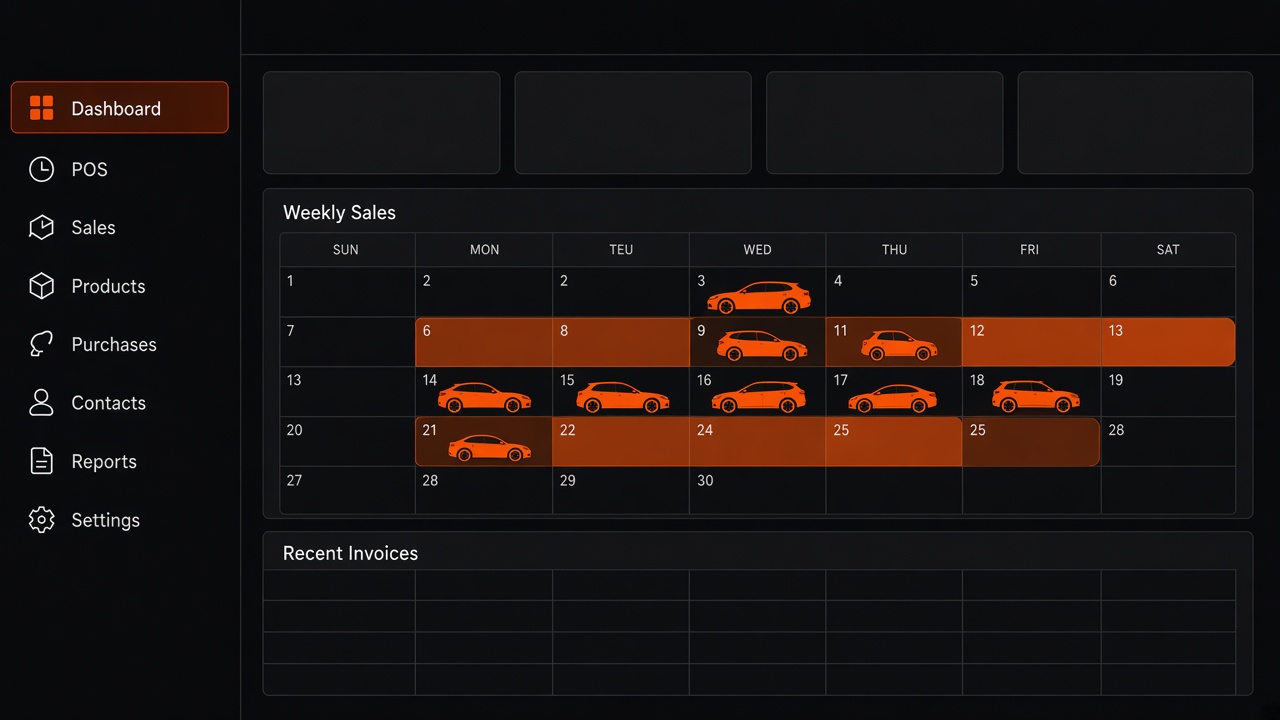
The contract, the handover, and the return sit on one path. An available car and a car already out are visible before a conflicting booking is saved. The contract is linked to the customer, so the commercial record and the fleet record are one.
1Rental contract and status
2Handover and return
3See which car is out
4Link the contract to the customer
Example
Example: a customer wants car 14 from Friday to Sunday. The system shows it is out until Saturday, so you pick another car before printing the contract.
How to use it
- Add the car, then open a contract for the customer.
- Set handover and return and confirm the car is free.
- On return, close the handover and update the car.
How it helps
Return does not depend on memory, and a clash stops before the customer arrives.
- What
- Holds the car cycle from booking to return.
- Why
- A car still out is not rented again.
- Who
- The rental company and the handover desk.
10 — Car maintenance
Car maintenance
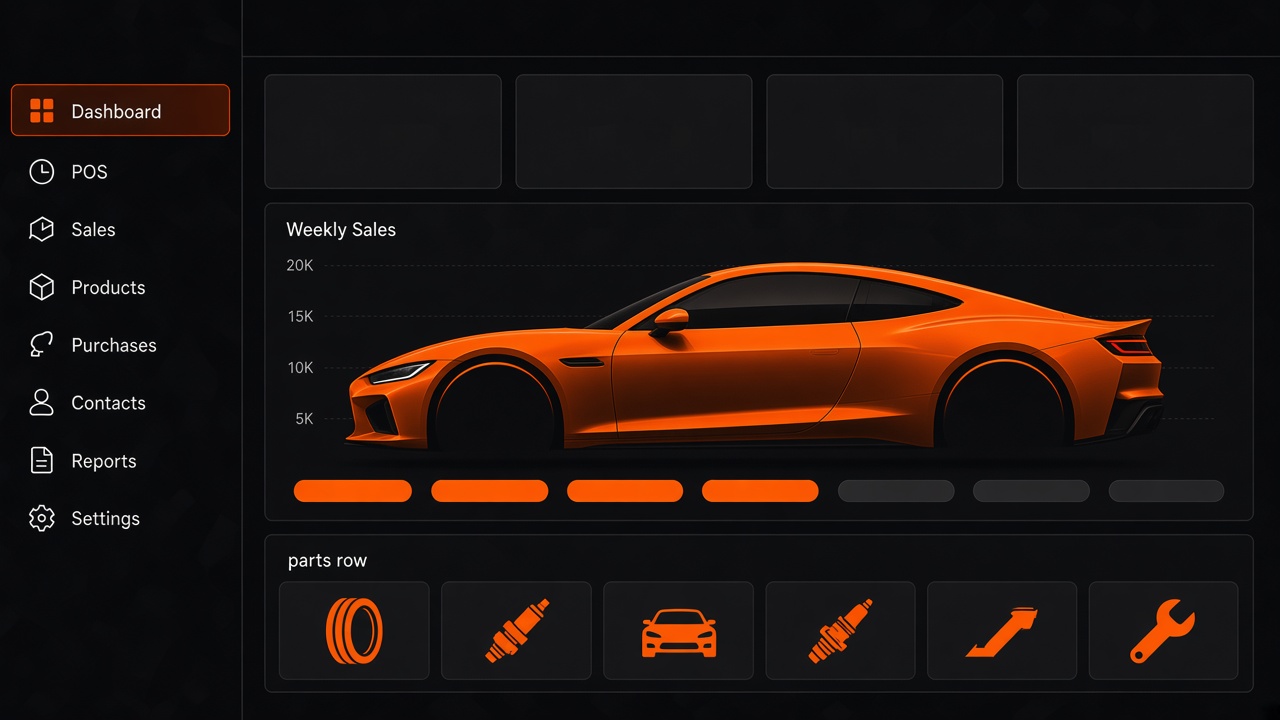
The work order opens on the car, and the state moves until delivery. The customer is followed from the same record instead of scattered calls. Parts and follow-up live on the order.
1A work order for the car
2States until delivery
3Parts and follow-up on the order
4The customer record with the job
Example
Example: a car enters “inspection”. After parts it becomes “waiting for a part”, and the desk tells the customer the state from the order, not from a guess.
How to use it
- Create a work order and link the car and the customer.
- Update the state and the parts while the job runs.
- Close the order at delivery.
How it helps
The customer does not hear three different answers, and the technician sees the job on the order.
- What
- Tracks the job until the car is delivered.
- Why
- The workshop and the customer read the same state.
- Who
- The service center and the front desk.
11 — Manufacturing
Manufacturing
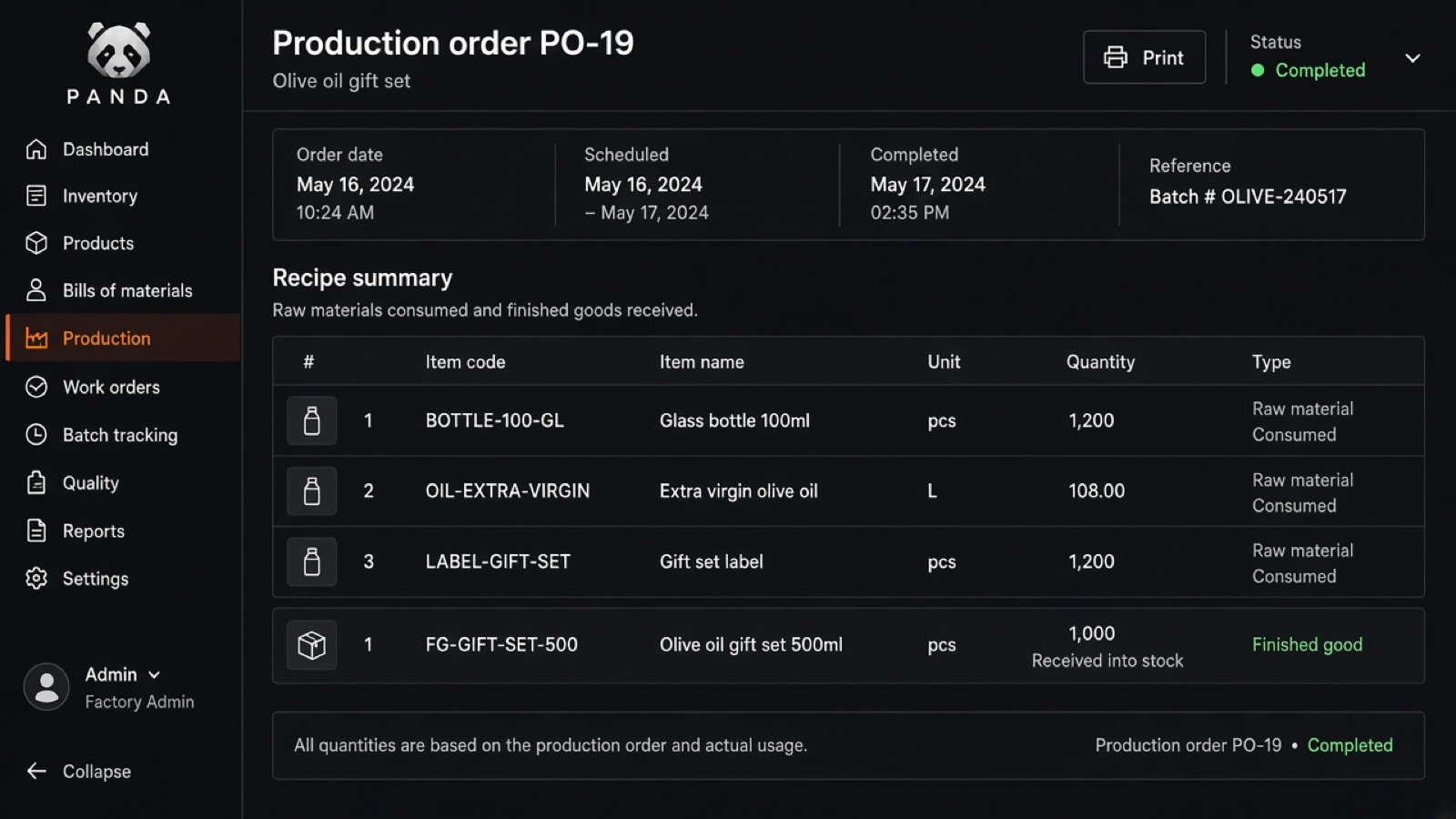
A factory lead becomes a production order. The request and the stage stay visible so delivery is not split from the customer agreement. The quantity on the order is the agreed quantity.
1Factory lead
2Production order
3Execution stage
4The request tied to the customer
Example
Example: a customer asks for 500 units. The lead becomes a production order with that quantity, and the stage moves from “prep” to “delivery” on the same record.
How to use it
- Save the factory lead with quantity and date.
- Convert it to a production order after confirmation.
- Update the stage until delivery.
How it helps
Production does not run a different number from the quote, and a delay shows before the customer’s date.
- What
- Moves the request from lead to production order.
- Why
- The agreed quantity is the one produced.
- Who
- The factory and sales.
12 — Import and export
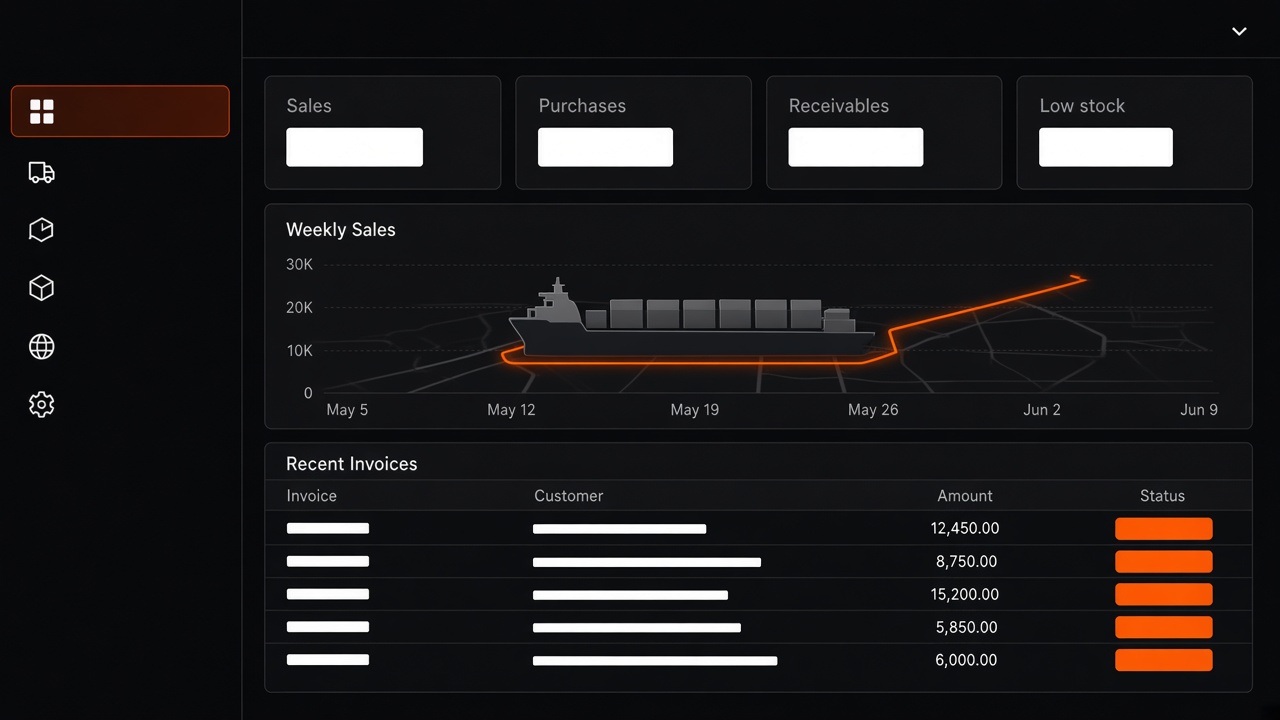
Import and export
The shipment, the contract, and the document are recorded on one trade path. The shipment state stays with the customer instead of living in email or an outside file.
1Trade contract
2Shipment and route
3Operation documents
4Customer follow-up on the same record
Example
Example: a shipment reaches the port. You update the state on the contract, and the customer is followed from their record: the document, the route, and the next step.
How to use it
- Create the contract and link the customer.
- Add the shipment and the documents.
- Update the state at each step of the route.
How it helps
The desk answers “where is the shipment?” from the record, not from a search in mail.
- What
- Keeps the contract, shipment, and document together.
- Why
- The cargo state is not lost in messages.
- Who
- The import and export desk.
13 — Clinics
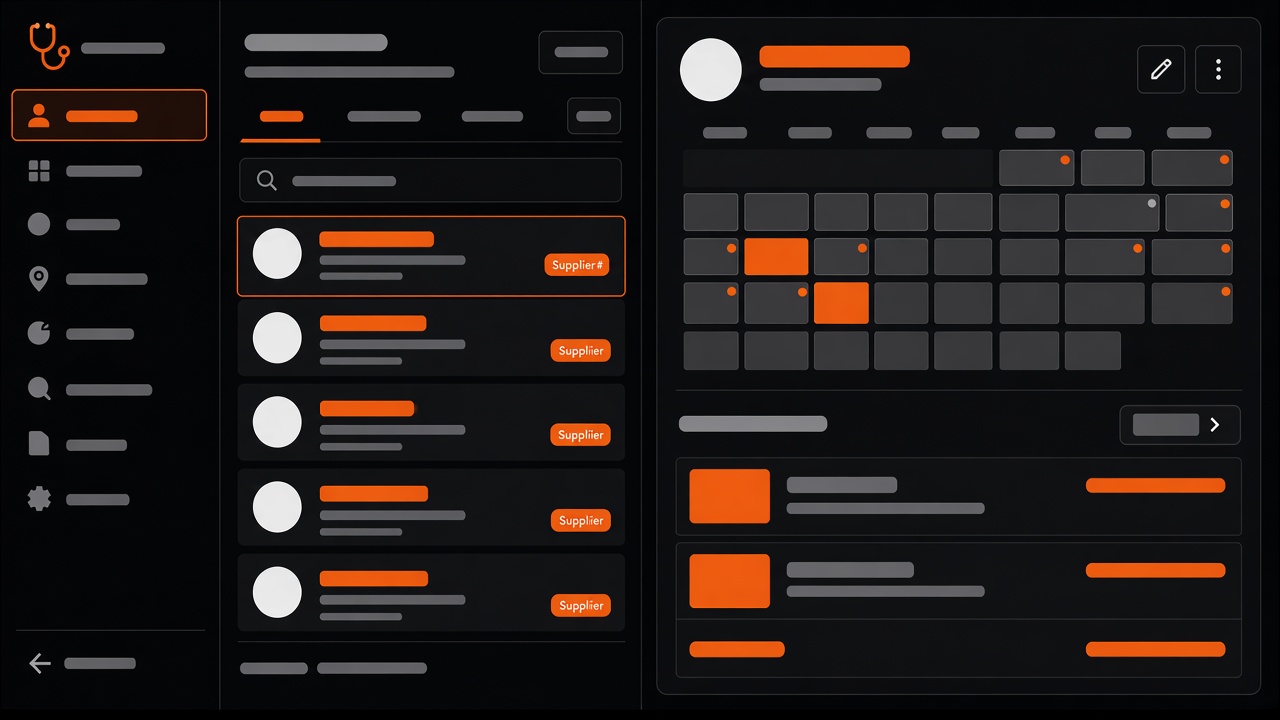
Clinics
The clinic path holds the patient, the appointment, and the follow-up. The next visit is stored on the same card so reception does not retype the data. A late appointment shows with the other follow-ups.
1Patient record
2Appointment
3Follow-up after the visit
4The next appointment
Example
Example: a patient has Thursday’s visit and a follow-up in two weeks. Both sit on her card, and reception does not create a second file for the same phone.
How to use it
- Add the patient once.
- Book the appointment on that record.
- After the visit, save the follow-up or the next appointment.
How it helps
Reception knows today’s schedule, and the doctor sees the previous visit on the same card.
- What
- Arranges the appointment and the follow-up.
- Why
- The patient is not registered twice.
- Who
- The clinic and reception.
14 — Education
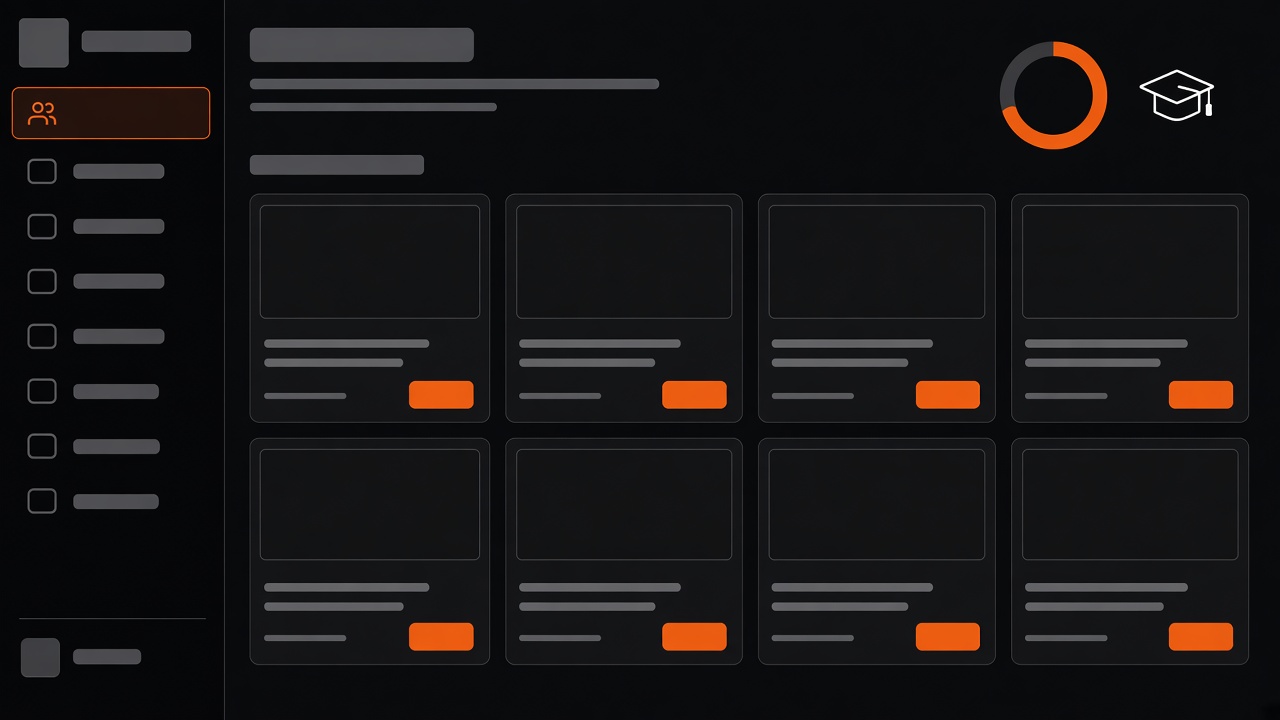
Education
The student, the course, and the follow-up sit on one path. Progress shows without an outside sheet. Contact stays on the student record.
1Student record
2Course or program
3Attendance and progress
4Contact with the student
Example
Example: a student joins an evening course. Two absences create a follow-up on their record with the course name.
How to use it
- Register the student and link the course.
- Update attendance or progress.
- Add a follow-up if they drop off.
How it helps
The office sees who fell behind without collecting names from separate files.
- What
- Holds the student from signup to follow-up.
- Why
- The course and the follow-up live together.
- Who
- The learning center and the office.
15 — Travel
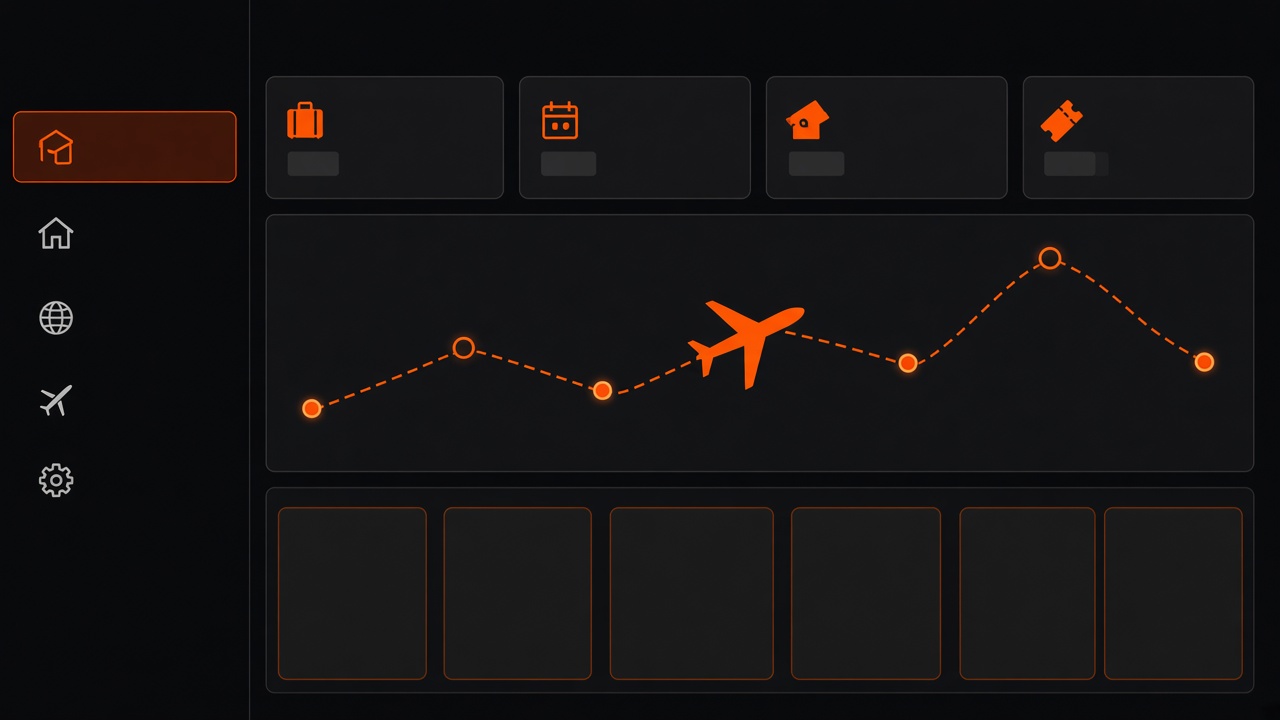
Travel
The trip, the booking, and the customer state sit on one record. A change of date or traveler count is reviewed before it is saved, so a message alone does not change the booking. The pre-travel check is a task on that customer.
1Trip
2Customer booking
3Booking status
4Follow-up before travel
Example
Example: a family books 4 seats and asks for a fifth. The change is reviewed, and after it is saved the booking status shows the new count.
How to use it
- Create the trip, then the customer booking with the traveler count.
- Review any change before saving it.
- Add a confirmation task before departure.
How it helps
The desk answers with seats and status from the record, and the customer does not wait for old messages to be assembled.
- What
- Tracks the booking from request to departure.
- Why
- A date change is not lost in messages.
- Who
- The travel company and the booking desk.
04 — Industries
Pick the trade after signup
Step two of the trial asks for the industry so the menu matches the work.
05 — Pricing
Start on the trial, then pick a plan
The free plan comes from the system. Higher plans are managed inside the account.
Car Rental Demo
0 lifetime Start trialImport Export Water Valves Demo
0 lifetime Start trialSayed Car Rental
0 lifetime Start trial07 — Start
Three steps the same day
From the company name to the first lead, without a technical setup.
Register the company
Name, email, and password.
Pick the industry
The menu fits the trade on the second step.
Open the board
Add a lead or ask Panda about today.

08 — About
CRM for customers. ERP for operations.
Panda CRM holds the commercial relationship: the lead, the quote, the invoice, and the follow-up. POS, inventory, and manufacturing live in Sys Panda ERP, with an in-app page that explains the link.
- A new company trial from the register page
- A sensitive edit waits for confirm or cancel
- A direct link to the separate ERP
Before you try it
Is this the ERP?
No. This is the CRM for customers and sales. Advanced operations stay in the ERP, with an in-app page that links to it.
Does the assistant edit data alone?
No. A write shows on a card and waits for run or cancel.
When do I pick the industry?
After the account details, on the industry page, before the board opens.
Can I change the language?
From the language button here, and after login from the header language button.
Where are stock and POS?
In the separate ERP. The link is in the about section.
Does the trial need setup?
No. Registration opens a trial company and you continue from the board.
Start with the first customer
Register the company, pick the industry, and ask Panda about today.